In this blog, we will be focusing specifically on Dynamic Transform which is the tool of choice for moving any geometry around the graphics window. But before we go into detail, meet the Mastercam Transform Tab:

Brief Description of Toolbars
- Dynamic: Manipulates geometry orientation and location with an interactive gnomon.
- Translate: Moves, copies, or joins entities within the same plane, without altering their orientation, size, or shape.
- Translate to Plane: Moves or creates copies of selected entities from one plane to another.
- Rotate: Moves, copies, or joins selected geometric and drafting entities around a centre point.
- Project: Projects selected entities by a distance, plane, or onto a surface or solid.
- Move to Origin: Moves all visible geometry to the current WCS origin based on a point that you select with the Auto Cursor.
- Mirror: Mirrors geometric and drafting entities by reflecting them symmetrically with respect to a defined axis or point.
- Roll: Wraps chained curves (lines, arcs, and splines) about an axis as though around a cylinder or unwraps rolled entities to make them lie flat.
- Offset Entity: Use this function to move, copy, join, or slot a single entity parallel to the original, displacing it by a defined distance and direction.
- Offset Chains: Use this function to move, copy, join, or slot one or more chained entities, displacing them by a defined distance and direction and, optionally, a depth.
- Geometry Nesting: The Nesting option in Mastercam fits parts onto a sheet of material for best yield. Nesting operates on geometry or toolpaths.
- Rectangular Array: Use this function to quickly create an array (grid) of entities by copying selected entities simultaneously in two directions—Direction 1 (X) and Direction 2 (Y)—relative to the construction plane. For each direction, you specify the number of copies to create, and the offset distance and angle.
- Distribute: Use this function to create multiple copies of geometry between two defined points.
- Stretch: Stretches line segments based on delta XYZ values, between two locations, or a polar vector and length.
- Scale: Use this function to increase or decrease the size of entities by a factor relative to a defined point.
More on Dynamic Transform
Dynamic provides a visual representation of Mastercam’s transform/translate movements as you make changes. You also have access to Translate, Translate to Plane, and Rotate all within one powerful function.

- Follow the screen prompts as they provide useful information.
- Note the visual indicators for manipulation mode.
- Start typing to enter relative coordinates for the origin ball.
- To switch between gnomon and geometry manipulation, click the button next to the gnomon.
The Dynamic Gnomon
| Align | Translate along | 3D translates XYZ/polar | Gnomon/Geometry switch |
| XY orient | 2D rotate | 3D rotate | Set view |
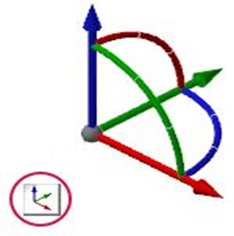
The Dynamic Gnomon is used to manipulate geometry orientation and location. The Dynamic Gnomon is used in a variety of functions and different aspects of the gnomon let you choose different types of transformation. The image below describes these selection points.

Note: You can also Right-click the gnomon to change its behaviour
Enjoy Playing on the Transform tab!
Read one of our previous Mastercam Interface Series blogs here.
If you have any questions, feel free to contact us or give us a call at 012 645 4300.