Startup commands give users the ability to control licensing.
Changes can made manually by editing the startup icon or by running the Mastercam Launcher
Right-click the Mastercam startup icon, select Properties and edit the Target line.

The standard Target line for Mastercam 2020 is:
C:\Program Files\Mastercam 2020\Mastercam\Mastercam.exe
At the end of the Target line, simply add a space and slash (“ /”), then the command. Repeat for multiple commands.
Example:
Customer license with Wire, Lathe, and Router not enabled (all other products will run)
- “C:\Program Files\mcam2020\Mastercam.exe” /noW /noL /noR
Licensing Overrides:
- /H Use a local HASP
- /N Use a NetHASP over the network
- /Software Use software licensing and search locally and on the network
- /SoftwareLocal Use software licensing in Local mode
- /SoftwareLan Use software licensing in Network mode.
Special:
- /NoHardwareAcceleration – Disable hardware acceleration
- /noREM – Suppress the dialog box that shows the applied commands
- /xm – Export the Mastercam menu resources to an .XML file for translator usage
Products:
- /Art : Art surfaces and toolpaths (Mill, Router, Lathe)
- /D : Design
- /LE : When running Lathe, only use Entry
- /L1 : When running Lathe, only use Lathe
- /ME : When running Mill, only use Entry
- /M2 : When running Mill, only use Mill
- /M3 : When running Mill, only use Mill 3D
- /RE : When running Router, only use Entry
- /R2 : When running Router, only use Router
- /R3 : When running Router, only use Router 3D
- /W1 : Wire
A lower level license will be used if the specified one is not available. For example, /M2 will use Mill Entry if Mill is not available.
Add-ons (NetHASP and Software licenses only):
- /Blade : Check out a Blade Expert license at startup
- /C5 : Check out a Curve5Ax license at startup
- /Engr : Check out an Engrave license at startup
- /MT1 : Check out a Mill-Turn level 1 license at startup
- /MT3 : Check out a Mill-Turn level 3 license at startup
- /Port : Check out a Port Expert license at startup
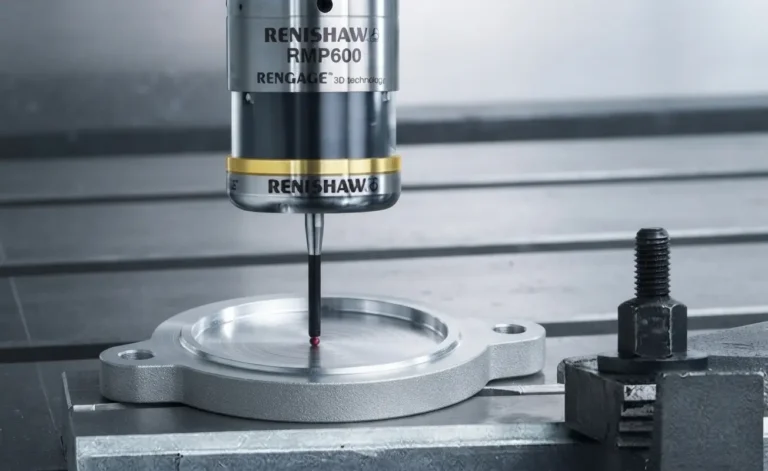
- /Probe : Check out a Probe license at startup
- /PD : Check out a ProDrill license at startup
- /SW5 : Check out a Swarf5AX license at startup
- /X5 : Check out a FiveAxis license at startup
Negation:
- /noArt : Act as if Art is not licensed
- /noBlade : Act as if Blade Expert is not licensed
- /noC5 : Act as if Curve5Ax is not licensed
- /noD : Act as if Design is not licensed
- /noEngr : Act as if Engrave is not licensed
- /noL : Act as if Lathe is not licensed
- /noM : Act as if Mill is not licensed
- /noPort : Act as if Port Expert is not licensed
- /noProbe : Act as if Probe is not licensed
- /noPD : Act as if ProDrill is not licensed
- /noR : Act as if Router is not licensed
- /noSW5 : Act as if Swarf5AX is not licensed
- /noT : Act as if Mill-Turn is not licensed
- /noW : Act as if Wire is not licensed
- /noX5 : Act as if FiveAxis is not licensed