-
Are you spending too much time manually updating your Sheet Stock List instead of generating nests with SigmaNEST?
-
Well here is the solution for you, the following steps show how to efficiently and effortlessly enter a high number of stock sheets into SigmaNEST making use of excel spreadsheets.
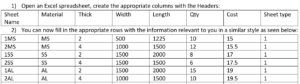
To make it even faster next time around this file as a template which you can re-use.
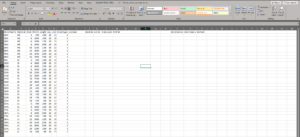
After quickly typing in your stock you must save the excel spreadsheet as a CSV (Comma delimited) file.
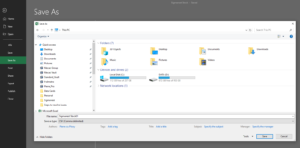
Once you have saved the file as a CSV (Comma delimited) file, you should right click the file and select open with “Notepad”. Now remove the very first row which consists of the headings.
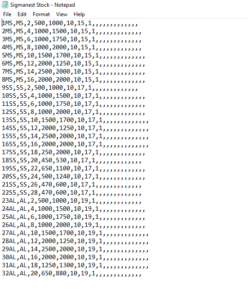
Save the file as a .txt file (SigmaNEST is setup to import a text file).
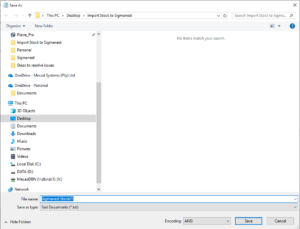
In SigmaNEST in the Sheet List Inventory select “Import”, you can then browse the location where you saved the text file.
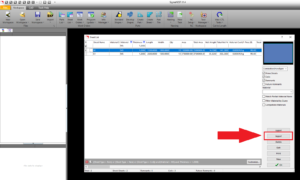
Now the import is complete. You will see that all your stock has been imported into inventory.
With all the time that you have saved with this technique of importing materials, you will have much more time to focus on nesting and generating NC files to keep your machines, busy cutting all your new material.