Many users encounter situations where off-site SigmaNEST programming is required, whether on the road or, if circumstances demand, working from home. SigmaNEST has already taken this into account by allowing users to roam licenses, allowing offline programming for as long as required.
With versions X1.7, SigmaNEST allows for an available license, along with any necessary add-ons, to be “booked out”, allowing the user in question to disconnect from the license host without encountering the usual license verification problems. However, this means that the roamed products will be unavailable to other users for that period of time.
Steps:
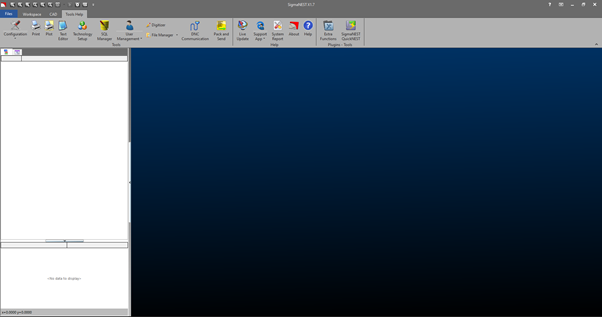
- In SigmaNEST, go to “Tools Help”
- Click on the “Configuration” dropdown and select “License Manager”.
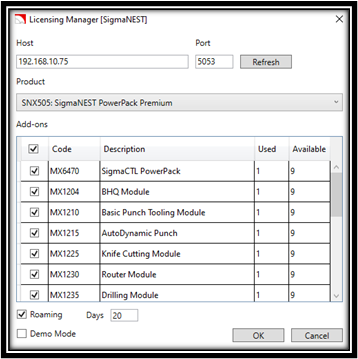
- Ensure the correct host name is entered for the PC/server hosting the licenses.
- Select the product and add-ons you wish to roam.
- Select the “Roaming” tick-box and enter the number of days.
- Accept by clicking “Ok”
You are now able to go offline and work on SigmaNEST.
To book a roaming license back into the license pool, simply follow the above steps and untick the “Roaming” tick-box. This will return the licenses to the pool.
If you allow the roaming period to reach the maximum days entered, one of two things will happen. If you are still connected to the License host, it will roam out the licenses again. However, if you are offline, the license will be booked back automatically and become available in the pool.
Considerations:
Some things to keep in mind when roaming:
- If your number of users exceeds the number of licenses available, roaming is discouraged. For example, if a company has 5 Powerpack licenses, and 10 programmers who take turns to use the license, roaming one of these will result in only 4 available licenses for the period roamed, with only the roaming user having access to that license. It is recommended that this is only done with a previous arrangement and understanding of the consequences.
- At any time, you can see which licenses have been roamed out by accessing the License Manager via a browser. Simply enter the “yourhostname”:5055. Go to “View Usage”. The table then will show which licenses have been taken by which user, as well as all details related to the roaming.

- If you are working off a database (SNData or SQL) not located on the local PC, roaming a license and going offline will allow you to use SigmaNEST, however, you will encounter errors as the database connections no longer exist. The recommendation then is to copy the database files onto the local PC and configure SigmaNEST to read off local databases, for the period required. Contact Mecad manufacturing SigmaNEST Support (snsupport@mecad.co.za) to assist with this transition.